The full review

The viewing address is buried in a client’s reply, and the signal drops just as I park outside. That is the moment I care about here. As a real estate agent working from the car, I judge Gmail by whether I can recover essential details, prepare a sensible follow-up and tell what has actually left my phone. I will separate useful preparation from features that need a connection. My least obvious finding: the Outbox deserves more attention than the inbox when reception becomes unreliable.
Part 1 · 1 of 3Before the driveway: check the right inbox
I would start by adding my work account, then opening Settings and checking its sync options. Gmail supports multiple accounts, including accounts from other providers, but an account appearing in the menu is not proof that its latest messages have arrived. Before leaving reliable reception, I would refresh the viewing conversation and open the reply containing the address.
I prefer the individual work inbox to All inboxes when preparing client replies. The combined view is convenient for spotting incoming mail, but it adds another opportunity to confuse personal and business email. I check the sender address in Compose before writing. That small distinction matters more to me than bringing every conversation onto one screen. Next comes making the useful details accessible.
Part 1 · 2 of 3An address you opened beats a search you planned
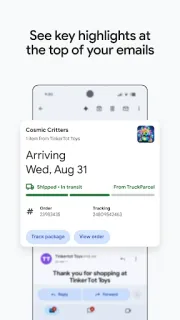
Gmail’s search is valuable when a client’s name, street or distinctive phrase is easier to remember than the subject line. I would search while connected, open the relevant conversation and expand the message with the access instructions. Summary cards can surface useful details in supported emails, but I would still read the original message before relying on a time or location.
With reception gone, I treat previously synced mail as a useful local resource, not a complete offline archive. Some message content may remain readable; an older conversation or unopened attachment may still need a connection. I would therefore open the exact material I expect to need before travelling. The important distinction is between having seen a subject line and having the actual instructions available.
Part 1 · 3 of 3Sent and Outbox tell different stories
A follow-up can be worth drafting while parked even when sending must wait. I can compose a reply without a working connection, and mail awaiting transmission belongs in Outbox until Gmail can send it. I would never treat tapping Send as confirmation that a client has received the message. In patchy reception, the next useful action is checking its status.
Once reception returns, I would let Gmail sync and check Sent rather than immediately writing the message again. That avoids creating a second follow-up simply because the first seemed slow. Sent indicates dispatch from my account, not that the recipient has read or acted on it. For a changed meeting point, that difference should shape what I do next.
Several viewings ahead? Preparation decides the fit
I would choose Gmail for a day built around existing client conversations, short replies and occasional gaps in reception. Its account switching and search suit that pattern, provided I prepare the relevant messages beforehand. I would look for a more deliberate offline document workflow if every floor plan and access sheet must remain available without service. Gmail is a communication hub in this situation, not my guarantee that an entire appointment folder will travel intact.
The listing, as we read it
- Developer
- Google LLC
- Version
- Varies with device
- Updated
- Nov 5, 2026
- Installs
- 10,000,000,000+
- Rating
- 4.1 out of 5
- Content rating
- Everyone
- Category
- Communication
- On Google Play since
- Sep 21, 2010
- Price
- Free
- In-app purchases
- No
- Ads
- Yes
Source: Google Play listing for com.google.android.gm · read Nov 9, 2026
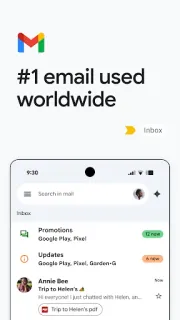
I read the Google Play listing as Google LLC’s communication app, flagged as containing ads and free to install. For this use, I separate those basics from the assisted writing and expanded search features: the description makes those dependent on an eligible Google plan and an internet connection.
I read the update notes as an emphasis on collaboration around email, with chat, spaces and voice or video calls in the same app. That may reduce switching while connected. It does not change my preparation for a viewing where mobile reception disappears.
When reception fades, settings and habits separate
Part 2 · 1 of 4Sync first; battery restrictions come second
For a Gmail account, I would inspect Settings, select the account and check Sync Gmail and Days of mail to sync. Keeping a useful recent window makes more sense to me than assuming every historical conversation is on the phone. Account types can expose different options, so I would judge preparation by opening the needed messages rather than by the settings screen alone.
If messages arrive only when I open the app, I would also inspect Android’s background data and battery controls for Gmail. Restrictions there can interfere with timely background activity; removing an unnecessary restriction may help, but it cannot create network coverage. I would change these controls to address a specific symptom, not chase every notification delay with a blanket settings reset.
Part 2 · 2 of 4The attachment is the weak link
A visible email is not a promise that its floor plan will open offline. I would open essential attachments while connected and, where appropriate, keep a locally accessible copy using the document app’s own controls. Then I would check that copy without a connection before depending on it. This is a more useful rehearsal than repeatedly refreshing Gmail from a driveway.
Links to cloud storage need their own preparation, too. A message containing a Google Drive link gives me a route to a file, not necessarily the file itself. I would use Drive’s offline controls for material I am permitted to retain. Similarly, an e-signature request in an email does not make the signing process available offline. Each destination has its own connection requirements.
Part 2 · 3 of 4Prepare the thread, then park the reply
My preferred sequence starts before departure: find the client conversation, read the latest instructions and star the thread. A star is a retrieval aid, not an offline switch, but it gives me a shorter route back than a broad inbox search. I would also put the appointment’s essential address and time into the calendar, checking them against the latest reply.
After the viewing, while safely parked, I would reply in the existing thread with the next action clearly stated. If I still need to verify a detail, I would leave a draft instead of queuing an uncertain message. If the reply is complete, I would send and later inspect Outbox and Sent. That separates unfinished thinking from a finished message waiting for reception.
Part 2 · 4 of 4Email carries the conversation, not the whole job
Compared with keeping every detail in a separate note, Gmail preserves the client’s wording and the surrounding discussion. I value that when a revised viewing time arrives halfway through a thread. A local note can be quicker to consult without service, though. I would use it for a small set of confirmed essentials, not a competing history that needs constant reconciliation.
I would also keep project management outside the inbox when follow-ups need explicit ownership or deadlines. Stars help me find a thread; they do not turn correspondence into a dependable task schedule. The same boundary applies to video conferencing: having calls close to email is convenient while connected, but I would not make an unreliable parking-area signal the foundation of a scheduled conversation.
My choice for replies, with an offline boundary
Gmail earns its place here through conversation continuity, account access and practical search. I care less about drafting assistance than being able to reopen the correct client reply and distinguish a queued message from a sent one.
My reservation is the boundary between mail and everything attached or linked to it. I would keep Gmail as the communication centre, prepare critical files separately and make a final status check before assuming a follow-up has gone out.
What I like
- I can keep follow-ups in the original client thread.
- I can switch between work and personal accounts.
- I can search by remembered names and phrases.
- I can prepare replies during a connection gap.
What I'd change
- I cannot assume older mail is available offline.
- I need separate preparation for files and links.
- I must check queued messages after reception returns.
Gmail FAQ
Can I read Gmail without mobile reception?
I can often read previously synced message content offline. I would open essential conversations beforehand rather than assume the whole mailbox is available.
Can I send a client reply while offline?
I can compose it and tap Send, but transmission needs a connection. I would check Outbox and then Sent after reconnecting.
Does starring an email keep it offline?
No. I use a star to find a conversation quickly, not to control whether its contents are stored locally.
Will a floor plan attachment open offline?
I would not assume so just because its email is visible. I would prepare a local copy where appropriate and verify access without a connection.
Do I need the assisted writing features for this workflow?
I would not make them essential. The described assistance requires an eligible plan and an internet connection, while my priority is preparing messages and checking send status.
 CompareGmail
 TipsTownSq Community