Yuka: scan a label and choose an alternative in 6 steps
I’ll show you how I use one shelf scan to compare a product and its suggested alternative before I leave the aisle.
Uma MarshReviewer · published Oct 19, 2026 · 6 min read
01Start with the barcode, not the ingredient paragraph
I’m standing in front of a shelf with two nearly identical pasta sauces, and the front labels are both making the same cheerful promises. That is the moment I open Yuka. Its useful job is not to replace every decision I make; it is to turn the barcode into a clear first comparison before I put either jar in the basket.
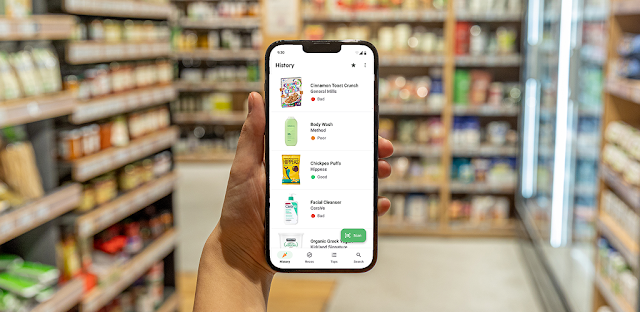
Yuka grades food as excellent, good, mediocre, or poor, then opens a product page with the factors behind that result. Food scores draw on nutritional value, additives, and the organic dimension. I treat the colour as a route into the details, especially when a familiar product earns a result I did not expect. The first scan takes less effort than trying to decode a crowded back label.
02Give Yuka camera access and scan the first product
Open Yuka and tap Scan on the bottom bar.
Tap While using the app when Android asks for camera access.
Point the camera at the barcode, keeping the black lines inside the scan frame.
Tap the product result when Yuka recognizes the item.
The barcode, rather than the product name, matters because packaging names can be broad and similar across a range. Turn the item until the code is flat and well lit; a shiny wrapper can throw glare across the lines. If I am comparing a family-size pack with a smaller pack, I scan both. Recipes and ingredients can differ even when the branding looks almost identical.
A recognized item opens its detail page rather than leaving you at the camera. Pause there before scanning the next option. The useful question is not simply, “Is this one bad?” It is, “What is moving this grade, and is that a trade-off I want for this particular shop?” That makes the next screen worth reading.
On a food product page, I first look at the overall grade, then move through the reasons shown underneath it. Nutritional value helps frame the everyday basics of the product. Additives can flag ingredients worth noticing. The organic dimension is its own part of Yuka’s food evaluation, so I do not assume it automatically settles the whole comparison.
This is particularly helpful for food that looks like part of a healthy routine: cereal bars, flavoured yogurt, ready-made soup, or a drink bought after a workout. A fitness tracker can show activity, but it cannot tell me why two similar snack bars receive different Yuka grades. The product page can. Keep the comparison inside the category, though; soup and a snack bar solve different problems.
I also avoid treating a single colour as a personal rule. A lower score can be a prompt to inspect the stated reasons and look for a close substitute. A higher score can be useful confirmation, but it does not turn the app into a meal planner. My goal is a clearer aisle decision, not a perfect basket.
04Open the alternative before you put the first item back
On a mediocre or poor product page, scroll below the evaluation details.
Tap the alternative product card shown in the recommendation area.
Read that product’s grade and its evaluation details.
Tap Scan to return to the camera and compare a product you can actually see on the shelf.
Yuka’s alternatives are most useful when they are close substitutes: another tomato sauce, a similar shampoo, or a different packaged snack in the same aisle. I compare the recommendation with what is physically in front of me, because availability still decides the purchase. The recommendation gives me a direction; the shelf gives me the practical options.
When an alternative is not the right size, flavour, or format, I scan the nearest comparable product instead of forcing the suggested one. That is where the camera loop earns its place. I can scan a second and third option quickly, read each grade, and choose the one that best fits the meal or household need.
05Use cosmetic results differently from food results
For beauty and personal care products, Yuka evaluates the ingredient list and assigns each ingredient a level of risk based on current scientific research. The product page is therefore the place to slow down. A body wash and a face cream may be used differently, and a product’s purpose still matters when I decide whether I want to replace it.
I begin with the overall grade, then read the ingredient entries that shape it. That is more useful than trying to memorize a long ingredient list while standing under harsh store lights. If a product receives a negative grade, the alternatives can give me a starting point for a similar item, such as another cleanser or deodorant.
I keep this in the lane of shopping information, not personal health guidance. If I already know that a product works well in my routine, I weigh Yuka’s ingredient view against the cost and hassle of changing it. The app is strongest at making the ingredients easier to inspect, then pointing to an adjacent choice.
06Make Yuka useful for repeat shops, not every meal
I get more value from repeat purchases than from scanning every single thing in the cart. Start with items that reappear: breakfast cereal, sauces, protein snacks, toothpaste, shampoo, and body wash. Once I have found an option I am comfortable buying again, I can stop reopening the same comparison on every shop.
That approach also keeps Yuka in proportion alongside a workout plan or sleep tracking routine. Those tools answer different questions, and none needs to become a daily source of friction. Yuka works best as a shelf-side comparison tool when a packaged product is new, a formula looks different, or the familiar choice is unavailable.
If the camera struggles, wipe the lens, move away from a reflective shelf edge, and hold the barcode steady. Scanning the same item from a different angle is usually a better next move than guessing from the front label. With the basic scan routine settled, the detail page becomes the part that changes your choice.
The takeaway
First, scan one repeat-buy food item and read the reasons behind its grade before checking the alternative product card. Keep the comparison to products that serve the same job in your basket.
Continue to this site’s Yuka page just below for more practical notes on using the app.

 TipsTownSq Community

 CompareWedding Planner by MyWed

 TipsBend

 How-toStronger
 TroubleshootingFood City
 TroubleshootingtheScore

 CompareGmail
 How-toStop & Shop
 How-toNETGEAR Nighthawk WiFi

 How-toGoWish

 How-toMango Languages Learning