I use this routine to return to Vocal Image, find a fresh daily plan, and make each speaking exercise count today.
Uma MarshReviewer · published Oct 26, 2026 · 6 min read
01Open Vocal Image when you have one quiet minute
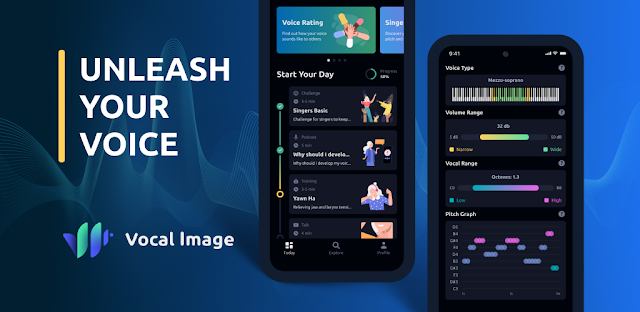
You are parked before a viewing, you have a presentation later, and you want one useful speaking exercise rather than another long lesson. That is the moment I open Vocal Image. The app is built around short communication practice, so I treat the daily plan as a small appointment: one focused task, completed before I start scrolling through every available topic.
The daily plan refreshes when you return to the app on a new day. That detail matters if yesterday’s exercises are still sitting on screen. I close the app after finishing a session, then open it again when I am ready to practise next. Returning from the Home screen is a cleaner starting point than repeatedly revisiting an old recording.
If you only have a few minutes, do not begin with an exercise that needs a polished answer. Pick the item that asks for a short response or a simple vocal drill. Save interview answers and longer presentation practice for a place where you can speak at normal volume. The next step is finding the plan rather than hunting through categories.
02Find today’s plan before choosing a specialist lesson
The Home area is where I look first. A daily plan gives the app enough structure to be useful without making me decide between public speaking, pronunciation, confidence, and professional communication every time. That is especially handy when I am switching between calls, property notes, and a busy afternoon.
Use the daily plan as your default, then choose a specialist lesson only when a real situation is close. For example, I would choose presentation work before video conferencing, articulation before a recorded introduction, or tone practice before a difficult conversation. A focused reason makes the feedback easier to apply.
The controls below are the quickest route I use when I want to begin instead of browse.
03Set up a recording that sounds like your normal voice
Recording tips are more dependable now, and I would pay attention to them before judging any feedback. A phone held close to your mouth can make normal speech seem heavy or uneven. Standing near a running fan, an open car window, or a noisy kitchen can also hide the parts of your voice you actually want to practise.
I keep the phone at a comfortable speaking distance, face it directly, and use the volume I would use in a meeting. Do not perform a louder, deeper, or unusually formal version of yourself for the exercise. The useful comparison is between your everyday voice and the clearer version you are trying to build.
On my three-year-old Pixel, I also check that I am not covering the lower edge of the phone while holding it. Small handling noises can distract from a recording. Once the setup feels ordinary, make one take, listen back, and move on to the part that turns it into practice.
04Record one answer, then repeat only one thing
Voice evaluation is most helpful when you give it a narrow job. If an exercise asks you to speak about yourself, choose one work situation: a client introduction, a project management check-in, or the opening of a presentation. A specific answer lets you hear pace, pauses, articulation, and confidence more clearly than a broad speech about everything you do.
I do not try to repair every possible weakness in the second take. If the first recording feels rushed, I slow the opening sentence and leave a short pause after the main point. If words blur together, I focus on the last consonant of a few important words. One change creates a comparison you can actually hear.
Use these controls in order so that you leave the exercise with a usable recording rather than an abandoned draft.
1. Tap “Record”.
2. Tap “Stop” when you finish your answer.
3. Tap “Listen” to hear the recording.
4. Tap “Try Again” for one revised take.
5. Tap “Continue” to return to the exercise feedback.
05Match each exercise to a situation you will face
A daily plan becomes more valuable when I attach it to a real conversation. Before a video conferencing call, I use pacing and clear openings. Before an interview, I practise answering with a direct first sentence instead of a long run-up. Before meeting someone new, I use the social-confidence material to sound present rather than overly rehearsed.
Pronunciation work also benefits from a practical target. Choose three words you will genuinely say: a neighbourhood name, a product term, a colleague’s surname, or a phrase from an online courses introduction. Say them inside full sentences. Isolated words can sound tidy while the same sounds disappear once you are speaking naturally.
For presentation practice, I make the first twenty seconds the priority. That is where rushed breathing and filler words often appear. A steady opening gives you a reference point for the rest of the talk, and it makes the next day’s plan feel connected to a real goal.
06Keep the plan useful when a day gets interrupted
If you open Vocal Image and cannot complete the whole plan, I would still do the first exercise cleanly rather than racing through several. The app’s bite-sized format suits short gaps, but speed is not the point. One recording with a clear intention is more useful than several rushed attempts made while you are distracted.
When you return on a new day, look for the refreshed plan instead of assuming you must finish every item left from before. That keeps the routine moving forward. If an earlier exercise matters for an upcoming event, you can revisit that theme after completing the current task, with a more specific speaking goal in mind.
I also keep a simple note outside the app with one line after a session: “pause after the first point,” “finish word endings,” or “start lower and slower.” The note turns feedback into something I can remember when I am not looking at the screen. That makes the next recording easier to improve.
The takeaway
Open Vocal Image, go to the Daily Plan, and complete one recording with a single target such as slower pacing or clearer word endings. Return on a new day for a fresh set of exercises, then match the practice to the next conversation on your calendar.
Continue to the Vocal Image page just below for more practical notes on its features and changes.
Notes After Use is independent and not affiliated with Vocal Image. This guide reflects the reviewer's own setup; menus can differ by device and version.
 TipsTownSq Community

 CompareWedding Planner by MyWed

 TipsBend

 CompareGmail

 How-toMango Languages Learning
 TipsBuddy.ai

 TroubleshootingFood City

 TroubleshootingtheScore
 How-toStronger

 How-toStop & Shop